
This document introduces the use of Skype for Business, including phone setup, login, PIN creation, and provides support links
This guide explains how to set up and use Skype for Business on desktops, mobile devices, and phones. It includes instructions for signing in, configuring phones, installing apps, and using features like instant messaging, video calls, and meetings. Mobile device setup is covered for iOS, Android, and Windows Phone, with specific steps for connecting to UFS Wireless1 and handling private vs. official calls.
Support resources are provided, including Microsoft’s official support pages, Lynda.com training videos, and UFS-specific contact details for help and migration feedback.
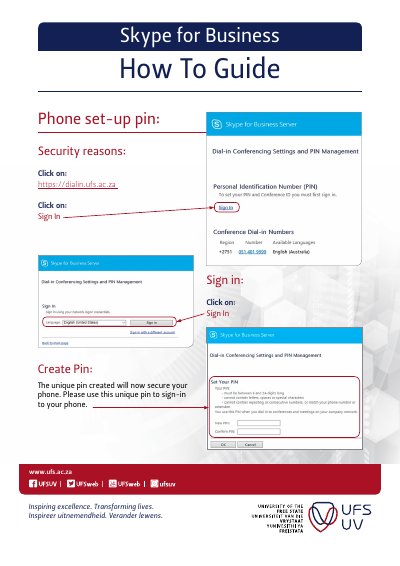
Click on https://dialin.ufs.ac.za, then Sign In, and use your unique pin to secure your phone.
No pin code is required for official calls. For private calls, dial 999 before the number.
Go to the Play Store, download Skype for Business, open it, accept terms, click arrow, enter your UFS email, type password, tick 'Always trust this certificate', add cellphone number, and click arrow to proceed.