
A guide that helps users transition from Outlook 2003 to Outlook 2010, covering the new ribbon, commands, and key features.
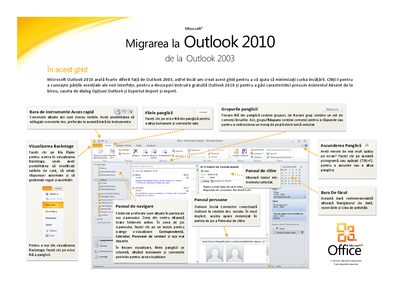
This guide walks users through the major changes introduced in Microsoft Outlook 2010 compared with Outlook 2003. It explains the new ribbon interface, how to hide or show it, and where to find familiar commands.
The document also covers practical tasks such as creating email signatures, using the Backstage view for printing previews, setting up automatic replies, importing and exporting data, and using keyboard shortcuts to work more efficiently.
| Copyright year | 2010 |
|---|
Press CTRL+F1 to hide or display the ribbon.
Open the File tab, click Information, then select Automatic Replies.
In a new message, go to the Message tab, click Signature, then choose Signatures to create or edit one.
Click the File tab and then Print; the right side shows a print preview.