
ColorOS 12 User Manual provides user instructions for ColorOS 12, including function introduction and usage methods
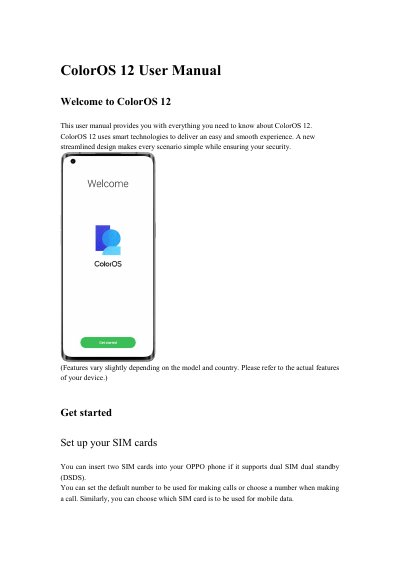
This manual explains how to set up SIM cards, manage mobile data, connect to Wi-Fi, and use features like dual channel acceleration and NFC. It also covers security options including fingerprint and face unlock, Omoji virtual avatar creation, and backup methods using local storage or HeyTap Cloud. The guide includes steps for firmware updates and factory resets.
You can insert two SIM cards into your OPPO phone if it supports dual SIM dual standby (DSDS). You can set the default number to be used for making calls or choose a number when making a call. Similarly, you can choose which SIM card is to be used for mobile data.
Open the Wi-Fi details page and tap "Scan QR code" to display a QR code. On the other phone, go to the "Wi-Fi" page and tap the button in the upper right corner to scan the QR code. The phone will automatically connect to the Wi-Fi network.
Go to "Settings - Safety & emergency - Fingerprint", enter your lock screen password, and enroll one or more fingerprints. You can use an enrolled fingerprint for phone unlock, app lock, Private Safe, app installation, and SMS payment verification.
Go to "Settings - System settings - Back up & migrate - HeyTap Cloud". Tap "Cloud backup". To manually back up files, tap "Back up now".