
This document is an instruction manual for the Epson 4450 Subli-Print printer, including driver installation and setup, CorelDRAW setup, troubleshooting, printing, cartridge installation, working with templates, using sublimation paper, introduction to CorelDRAW tools, and common tasks.
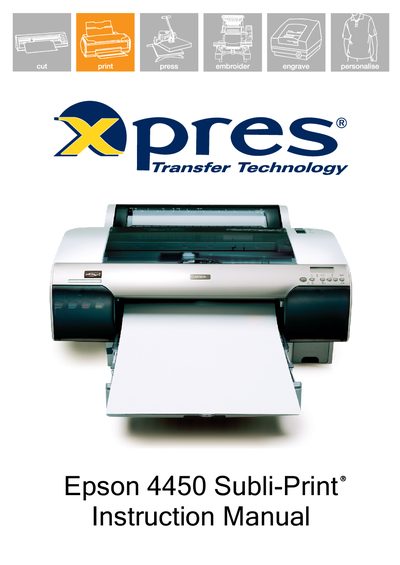
This manual covers driver installation, printer configuration, and the use of the Xpres Subli‑Print colour profile for high‑quality sublimation printing on the Epson Stylus Pro 4450. Detailed instructions are provided for setting up CorelDRAW, loading Subli‑Print cartridges, and using templates for various substrates.
Additional sections include tips for sublimation paper, printable hints, and a troubleshooting guide that addresses common printing issues, ink charging, and colour management.
| Print Quality | Fine 720 dpi |
|---|---|
| Media Type | Photo Quality Ink Jet Paper |
| Colour Mode | Color/B&W |
Download the profile, right‑click the file and choose “Install Profile”. If the option is missing, rename the file extension to .icc and retry.
Turn the printer on, open the ink compartment, insert the Subli‑Print cartridges, lower the levers and wait for the LCD to show “READY”, indicating the initial ink charging is complete.
Open the printer properties, go to the Advanced tab, select “Custom” under Mode, then configure Media Type, Colour, Print Quality and other options as shown.