
Sapphire is a GPS receiver with diverse applications that helps users locate objects, conduct personal and vehicle navigation, and perform geographical surveys.
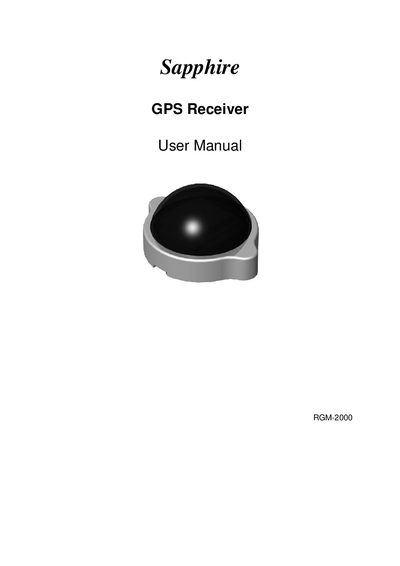
This manual covers everything you need to set up and use the RoyalTek RGM-2000 GPS receiver, including package contents, hardware connections (RS‑232 and USB), and software installation for various Windows versions. Detailed steps guide you through installing drivers, configuring serial parameters, and running the test program.
Additional sections describe how to synchronize the device with a PDA, physical characteristics, software data formats (NMEA messages), troubleshooting common issues, connector pinouts, and warranty information.
| Baud rate (RS‑232) | 4800 |
|---|---|
| Data bits (RS‑232) | 8 |
| Parity (RS‑232) | None |
| Stop bits (RS‑232) | 1 |
| Flow control (RS‑232) | None |
| USB power input | +5 V DC |
Plug the RS‑232 connector into the COM port of your notebook or handheld PC, then connect the PS2 connector to the mouse port, power on the device, select the correct COM port, and run the test program.
Check that the RS‑232, PS2, or USB connectors are securely attached, verify BIOS settings for the PS2 port, close other applications using the COM port, and ensure the receiver has a clear view of the sky.
Insert the supplied CD, select the USB_DRIVER directory when prompted, and follow the wizard to install the USB serial converter driver; the COM port number will then be visible in System Properties.