
This document is a user manual for the random accessories 1 and 2 of TINS-E125WJZZ 09P03-MA-NP Malaysia printing. The document provides detailed information on safety precautions, trademark information, installation brackets, TV settings, external device connections, remote control usage, image and sound options, and specifications of the product.
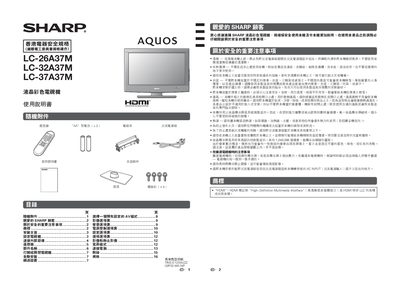
The manual begins with important safety precautions and detailed instructions for installing the TV, including wall‑mount requirements and the use of the recommended AN‑37AG3 wall‑mount bracket. It also covers how to attach the supplied stand, connect the antenna, and set up external devices such as DVD players and game consoles.
Subsequent sections explain how to operate the television using the remote control, adjust picture modes (standard, widescreen, cinema, etc.), configure sound settings, manage channel setup, and use advanced features like optical picture control, automatic volume, and RS‑232C computer control. A troubleshooting guide and full specifications are provided at the end. This manual is written in Chinese.
| Screen size (LC‑26A37M) | 26 inches (648 mm) |
|---|---|
| Resolution | 1,049,088 pixels (1366 × 768) |
| Video color system | PAL / SECAM / NTSC 3.58 / NTSC 4.43 / PAL 60 |
| Power consumption (operating) | 88 W |
| Audio amplifier power | 10 W × 2 |
| RS‑232C communication speed | 9,600 bps |
Use Sharp’s AN‑37AG3 wall‑mount bracket and have a qualified service technician perform the installation; other brackets may cause instability and injury.
Press the WIDE button on the remote or select “WIDE” from the picture menu to activate the widescreen mode.