
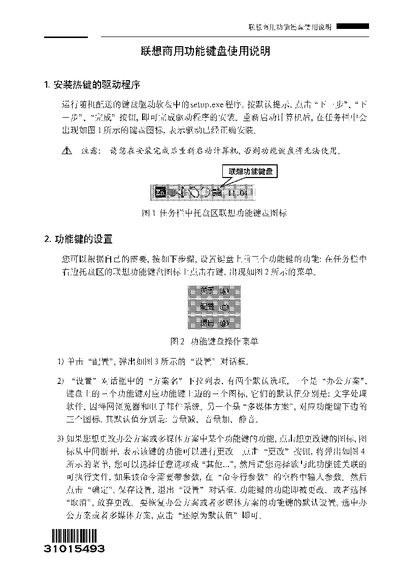
The manual explains how to install the keyboard driver by running the supplied setup.exe program, following the prompts, and restarting the computer. After installation, a Lenovo keyboard icon appears in the system tray, indicating the driver is active.
It also details how to configure the three function keys using the settings dialog, choose preset schemes or create custom ones, change individual key assignments, and restore default settings. The three keys can launch applications, put the PC to sleep, or open invoicing software when installed. This manual is written in Chinese.
In the settings dialog, click the "Restore to default values" button to reset the keys to the original scheme.