
Intel Smart Response Technology is a technology that can be used to accelerate SATA hard drives. This document provides instructions on how to install and use Intel Smart Response Technology.
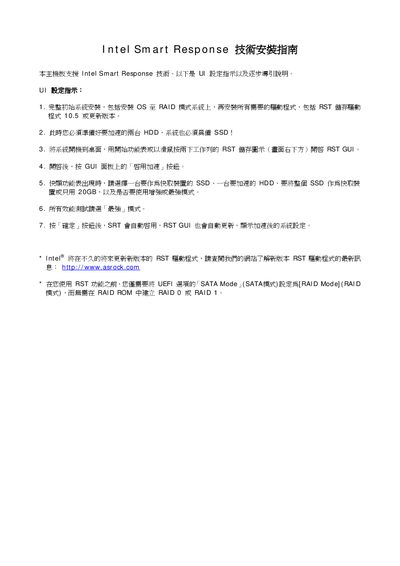
The manual provides step‑by‑step instructions for setting up Intel Smart Response. It starts with preparing a system that has both an SSD and an HDD, switching the SATA mode to RAID in the UEFI, and creating a RAID 0/1 volume if needed. The RST GUI is then used to enable acceleration, select the SSD for caching, choose a cache size (e.g., 20 GB), and apply the settings.
It also covers how to disable the caching feature, reset the SSD to a normal usable state, and verify that all data has returned to the HDD after disabling. Each operation is performed through the RST graphical interface with clear prompts for confirmation. This manual is written in Chinese.
| Cache size | 20 GB |
|---|
Open the RST GUI, click the "Enable Acceleration" button, select the SSD to use for caching, choose the HDD to accelerate, set the cache size (e.g., 20 GB), and confirm the settings.
Launch the RST GUI, go to the Acceleration page, click "Disable Acceleration", and confirm the prompt.
In the RST GUI, click the "Reset to usable" button (orange) to restore the SSD for regular storage use.