
Key facts
Start here
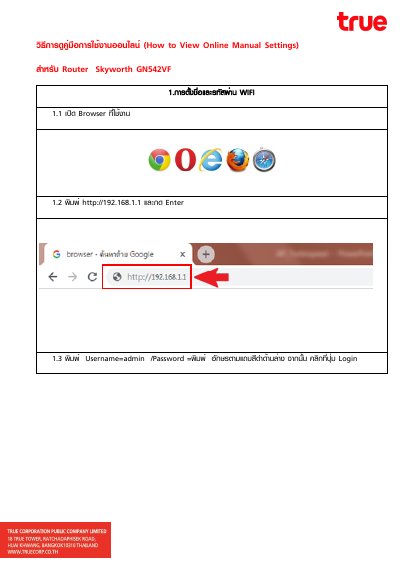
Skyworth GN542VF Router Online Manual
This manual explains how to open the Skyworth GN542VF router's online settings in a browser and log in to the web interface. It covers WLAN 2.4 GHz and 5 GHz configuration, including SSID, security, channel, bandwidth, and related options.
The documented steps include selecting settings for each band and confirming the changes. Screenshots show the router's status, network, security, application, and management menus.
Skyworth GN542VF specifications
| Default web interface address | http://192.168.1.1 |
|---|---|
| Default password | B6A36425 |
| Maximum associated clients | 32 |
All Skyworth GN542VF documents by type
Day-to-day operation, settings and troubleshooting. Start here if the product is already set up.
Questions answered in these manuals
What default password is required to log in to the Skyworth GN 542 VF router?
The default password is the letters shown in the Default Password field.
How do you enable the DHCP server on the Skyworth GN 542 VF router?
You must select the DHCP Server option and set it to enable.
How do I open the online settings for the Skyworth GN542VF router?
Open a browser and enter http://192.168.1.1 to access the router settings.
Where are the 2.4 GHz Wi-Fi settings?
They are under Network > WLAN 2.4G.