
This guide provides step-by-step instructions for installing and configuring the Ruckus R750 Dual-Band 802.11ax Indoor Wi-Fi Access Point.
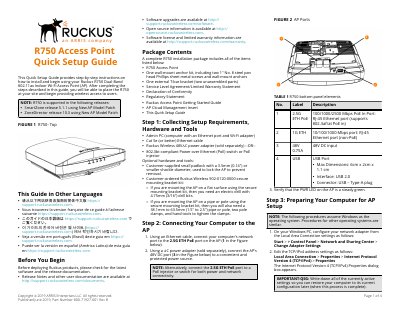
This Quick Setup Guide provides step-by-step instructions on how to install and begin using the Ruckus R750 Dual-Band 802.11ax Indoor Wi-Fi Access Point. It covers setup requirements, hardware connections, and initial configuration steps to provide wireless access to users.
The document details the physical installation process, including mounting on drop-ceiling T-bars and flat surfaces, as well as the logical setup involving network connection, web interface login, and customizing wireless settings like SSID and country code.
| Wi-Fi Standard | 802.11ax |
|---|---|
| Ethernet Port Speed | 2.5G |
| Power Input | 48V DC |
| USB Interface | USB 2.0 |
| Maximum Dimensions | 6cm x 2cm x 1.1 cm |
| PoE Mode Support | 3at+ |
The default username is 'super' and the password is 'sp-admin'.
Enter https://192.168.0.1 in the browser navigation bar to initiate the connection.
The AP supports a Ruckus Wireless 48V AC power adapter or an 802.3bt-compliant Power over Ethernet (PoE) switch or injector.