
Step‑by‑step instructions for upgrading Ruckus AP firmware via GUI or CLI.
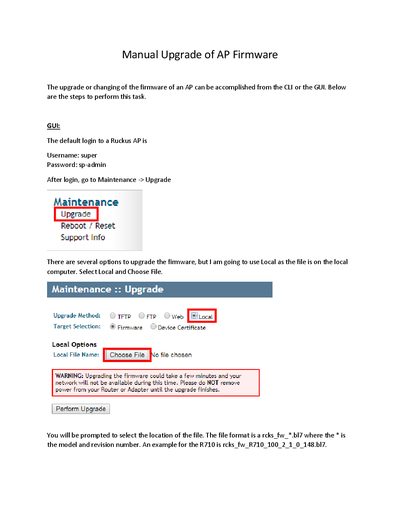
This guide explains how to manually upgrade the firmware of a Ruckus access point using either the graphical user interface or the command‑line interface. It covers login credentials, selecting the firmware file, and initiating the upgrade.
Both GUI and CLI methods are detailed, including the required file format (rcks_fw_*.bl7), TFTP server setup, and commands to verify the new firmware version after the AP reboots.
| Default username | super |
|---|---|
| Default password | sp -admin |
| Firmware file format | rcks_fw_*.bl7 |
The default username is **super** and the default password is **sp -admin**.
After the AP reboots, run the **get version** command to display the current firmware version.
The firmware file must be named **rcks_fw_