
The Mercury YR1800XG Wi‑Fi 6 router quick start guide provides hardware connection steps, initial setup, Wi‑Fi configuration, and troubleshooting tips.
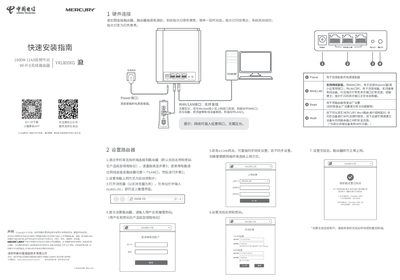
This guide walks you through connecting the Mercury YR1800XG router, selecting WAN or LAN mode, powering the device, and accessing the web management interface (router.ctc). It also covers Wi‑Fi SSID and password setup, Mesh pairing, and e‑Link gateway integration.
Additional sections address common issues such as inability to open the management page, resetting the router to factory defaults, choosing the appropriate internet connection type, and switching between router and bridge modes. Warranty and safety information are also included. This manual is written in Chinese.
| Wi‑Fi Standard | 802.11ax (Wi‑Fi 6) |
|---|---|
| Maximum Data Rate | 1800 Mbps |
| Mesh Compatibility | MERCURY Mesh routers |
Power the router on, then press and hold the Reset button until the indicator flashes quickly, and release it.
Make sure the computer is set to obtain IP and DNS automatically, is connected to a LAN port with a lit indicator, and use IE without a proxy.
A steady red light indicates a possible connection issue; check the WAN cable, restart the router, or reset it to factory defaults.