
User manual for the Creative SoundBlaster OmniSurround 5.1 USB audio solution, covering package contents, system requirements, registration, software…
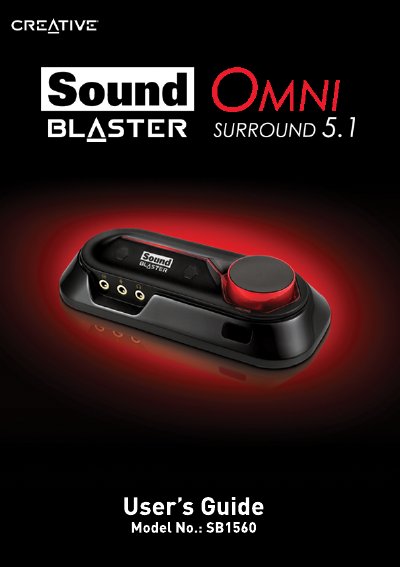
This manual is for the Creative SoundBlaster OmniSurround 5.1, a USB audio solution with SBX Pro Studio technology. It covers the package checklist, system requirements for Windows and macOS, product registration, and Creative Software AutoUpdate.
It also describes the hardware connectors, indicators and volume control dial, volume adjustment methods, remote control buttons and operating range, and remote control battery replacement. This manual is written in Japanese.
| Windows processor | Intel Core 2 Duo 2.2 GHz, AMD Athlon 64 X2 Dual Core, or equivalent |
|---|---|
| Windows operating systems | Windows 8, Windows 7, or Windows Vista (32-bit or 64-bit) |
| Windows storage | 600 MB or more free hard disk space |
| USB port | Available USB 2.0 port |
| macOS processor | Intel Core 2 Duo 2.8 GHz |
| macOS version | Mac OS X 10.6 or later |
| Remote control range | Up to 3 meters |
The package includes the SoundBlaster OmniSurround 5.1 USB device, a 1.5 m micro USB 2.0 cable, a stereo RCA to 3.5 mm plug, and a remote control in some products.
Windows requires an Intel Core 2 Duo 2.2 GHz, AMD Athlon 64 X2 Dual Core, or equivalent processor; Windows Vista, 7, or 8; a CD/DVD drive; 1 GB or more of memory; 600 MB or more of free disk space; and an available USB 2.0 port.
Product registration can be done during software installation or at www.creative.com/register.
It lights red when USB power is detected, blinks intermittently when infrared is operating, and blinks continuously when audio is muted.