
The ASUS PB278 series monitor user guide provides setup, operation, safety, cleaning, specifications and troubleshooting information.
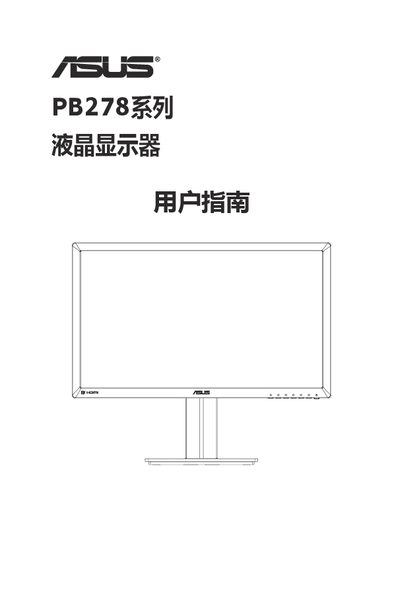
This guide covers everything you need to get started with the ASUS PB278 series LCD monitor, including unpacking, assembly, cable connections, and basic operation using the OSD menu. Safety warnings and maintenance tips help you keep the display in good condition.
Detailed specifications such as panel size, resolution, brightness, and power consumption are listed, along with a comprehensive troubleshooting section that addresses common issues like power LED problems, image flicker, and audio output. This manual is written in Chinese.
| Panel size | 27.0" (68.6 cm) |
|---|---|
| Maximum resolution | 2560 x 1440 (WQHD) |
| Brightness (typical) | 300 cd/m² |
| Contrast ratio (typical) | 1000:1 |
| Viewing angle | 178° (V) / 178° (H) |
| Color depth | 16.7 million (8‑bit) |
| Response time | 5 ms (gray‑to‑gray) |
| Speakers | 2 × 3 W stereo |
| Power consumption (typical) | < 60 W |
| VESA mount | 100 mm × 100 mm |
| Physical dimensions (WxHxD) | 643 mm × 552.3 mm × 218 mm |
| Weight | 7.8 kg (estimated) |
| Input voltage | AC 100‑240 V |
Check that the power button is pressed, the power cable is properly connected, and the OSD power indicator is set to "Enable".
Turn off the monitor, unplug it, and wipe the surface with a soft, non‑abrasive cloth slightly dampened with a neutral cleaner; avoid alcohol, acetone, or spraying liquid directly on the screen.
Adjust the contrast and brightness settings through the OSD menu.