
Dell™ Dual Video USB 3.0 Docking Station User Guide Model: D1000
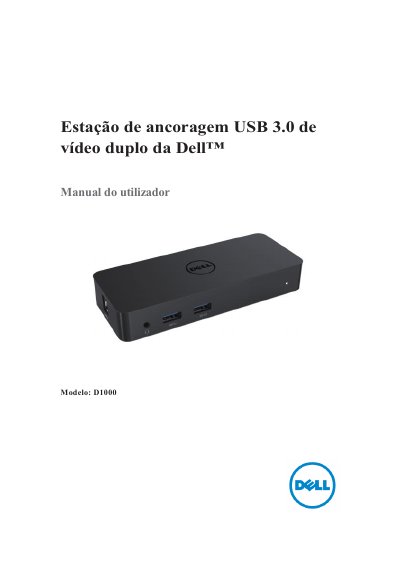
This manual describes the Dell D1000 docking station, which provides dual video output via VGA, HDMI, and DisplayPort, along with USB 3.0 ports, Gigabit Ethernet, and audio. It includes product specifications, system requirements, and the contents of the package.
The guide walks through Windows setup using DisplayLink drivers, explains the DisplayLink Manager menu for screen configuration (extend, mirror, rotation, Fit to TV), and provides a detailed FAQ with troubleshooting steps for common issues such as no video, distorted video, audio problems, USB port failures, HDCP limitations, driver installation, and boot problems. It also covers power LED indicators and regulatory compliance. This manual is written in Portuguese.
| Input ports | 1 x USB 3.0 (Standard, Type B), 1 x DC power |
|---|---|
| Output ports | 2 x USB 3.0, 1 x USB 3.0 Power Share (BC 1.2, 2.1A charging), 1 x VGA, 1 x HDMI, 1 x DisplayPort, Gigabit Ethernet, Combined audio (headphone/microphone) |
| Maximum display support | Dual monitor output |
| Power adapter input | 100-240 VAC, 50-60 Hz, 1.3A max |
| Power adapter output | 19.5 VDC, 2.31A |
| Operating temperature | Maximum 40°C |
Check the video cable connections. Disconnect power, wait 10 seconds, then reconnect.
Verify the audio settings in Control Panel > Sound to ensure the USB audio device is available and set as default.
Disconnect power, wait 10 seconds, then reconnect. Update to the latest USB 3.0 host controller driver.
Remove all USB devices connected to the dock; some unqualified boot devices may cause the system to hang at the boot screen.