
This user manual introduces the features and specifications of the Thermal Receipt Printer T-40.
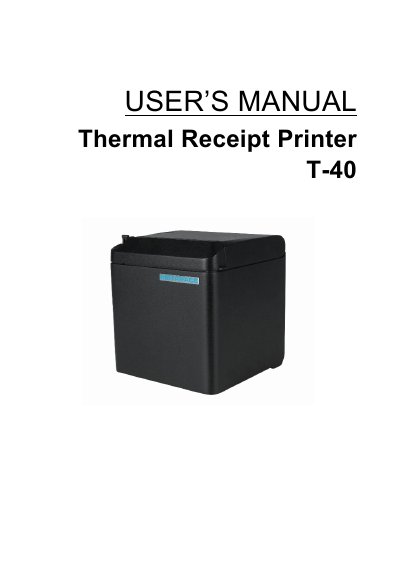
The T-40 is a thermal receipt printer using direct thermal line printing. The manual covers its technical and cutter specifications, paper specifications, appearance and components, installation, interface signals, routine maintenance, troubleshooting, power management, and DUMP mode.
The printer supports continuous and marked paper, paper widths of 57.5/80/82.5 mm, and USB, serial, parallel, Ethernet, Bluetooth, and WLAN connectivity as described in the text. It also provides button configuration, self-test printing, and LED/buzzer error indications.
| Print method | Direct thermal line printing |
|---|---|
| Resolution | 203 × 203 DPI; 203 × 180 DPI |
| Paper width | 57.5/80/82.5 mm |
| Print width | Max. 80 mm |
| Print speed | Max. 250 mm/s |
| USB interface | USB 2.0 (full speed) |
| Serial interface | RS-232C |
| Parallel interface | IEEE1284 |
| Ethernet interface | 10/100BASE-T |
| Memory | RAM: 2 MB, Flash: 4 MB |
| Power supply input | 100-240V AC, 50-60 Hz |
| Power supply output | 24V ± 5% DC, average current 2A |
| Overall dimensions | 127mm(L)*127mm(W)*134mm(H) |
| Cutter lifetime | 2,000,000 cuts |
| Print head lifetime | ≥150 km |
The T-40 supports paper widths of 57.5, 80, and 82.5 mm.
The maximum print speed is 250 mm/s.
Press the FEED button while turning on the power, and the printer will print out a configuration sample.
Press the FEED button briefly and the printer will try to clear the cutter error automatically.