
This guide explains how to use the TP-Link RE305 wireless range extender. It can help you extend the range of your existing Wi-Fi network.
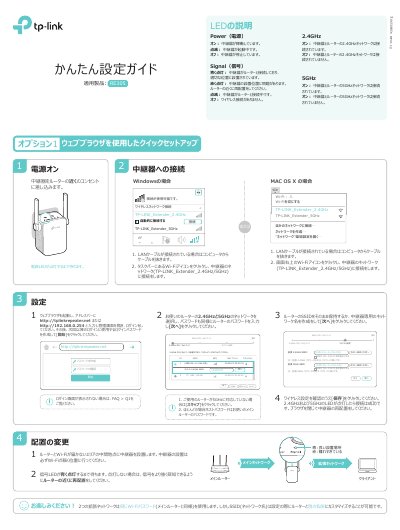
This Japanese quick installation guide explains how to set up the TP-Link RE305 wireless range extender. It describes the Power, Signal, 2.4GHz, and 5GHz LEDs and explains how to connect a Windows or Mac computer to the extender's default wireless network.
The guide presents two setup options: quick setup through a web browser at http://tplinkrepeater.net or http://192.168.0.254, and WPS button setup. It also covers checking wireless settings, relocating the extender for good signal, using the Tether app, wired connection for devices, and troubleshooting FAQ. This manual is written in Japanese.
| Wireless bands | 2.4GHz and 5GHz |
|---|---|
| Default management IP address | 192.168.0.254 |
| Management URL | http://tplinkrepeater.net or http://192.168.0.254 |
With the extender powered on, press and hold the RESET button with a pin until the LEDs turn off, then release it.
Connect the computer to the extender's network, then enter http://tplinkrepeater.net or http://192.168.0.254 in a browser.
Check that the computer is connected to the extended network and is set to obtain an IP address automatically, then enter the extender's IP address.
Press the router's WPS button, then press the extender's WPS button within two minutes.