
This manual describes how to use the Zoom Edit&Share software to edit devices
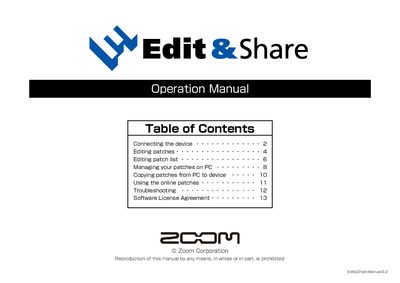
This document is the operation manual for the ZOOM Edit&Share application. It provides instructions on how to connect the hardware device to a computer and start the software manually or via Mac applications folder. The guide explains how to select devices from the menu and verify connections within the Editor area.
The manual details procedures for editing patches, including renaming, storing, reordering effects, and adjusting parameters like BPM and levels. It also covers managing patch groups on a PC, copying and pasting items, and utilizing online patches. A troubleshooting section addresses common issues such as no sound output, noise interference, USB recognition problems, and device unresponsiveness.
Double-click the Edit&Share shortcut icon on your desktop. For Mac users, please start it from the Applications folder.
You can use letters A-Z and a-z, numbers 0-9, spaces, and symbols including #, $, %, &, *, (, ), -, ., :, =, @, [, ], _, +, {, }, ~.
Open the [Device] menu and select [Connect]-[Refresh]. If the name still does not appear, open the [Display] menu, select [Show Devices], and check the box next to the device name.