
This document provides instructions for RadioLabs' O2Link Bridge System, which allows you to extend your wireless network by adding additional O2Link Routers. The document includes a simple example of connecting two O2Link Routers in a wireless bridge and provides steps for configuring the routers and PC.
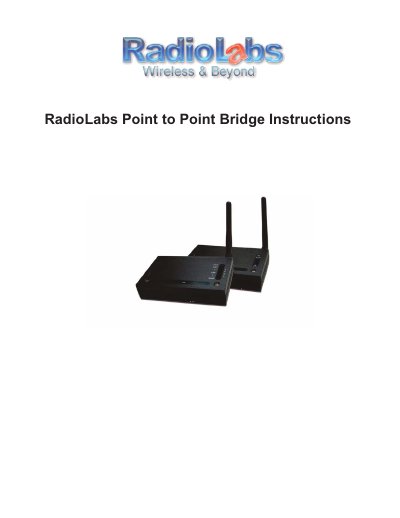
This guide explains how to extend a wireless network by connecting two O2Link Routers wirelessly. It details the initial configuration steps, such as setting up a static IP address on your computer (192.168.1.10) and disabling internal WiFi cards to prevent conflicts during setup.
The document provides step-by-step instructions for accessing the Web-Based Configuration Utility to enable WDS mode, swap LAN MAC addresses between units, and configure wireless security using WEP encryption. It also includes troubleshooting tips for common issues like incorrect MAC address entry or connection failures.
You must configure your PC to use the static IP address 192.168.1.10 with a subnet mask of 255.255.255.0.
Hold down the reset button on the back of the router or AP for 15 to 20 seconds until the WiFi light starts blinking again.
The default IP address is 192.168.1.1, which you enter into your web browser's address field.