
This document describes how to use Epson scanners to scan documents.
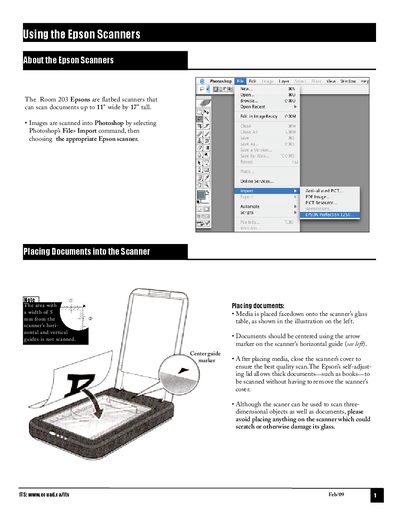
This guide explains how to prepare documents for scanning with the Epson Perfection 1250 flatbed scanner. Media is placed facedown on the glass, centered using the horizontal guide, and the scanner lid can stay open for thick items such as books.
It then walks through the Photoshop workflow: selecting the Epson scanner, choosing document source and image type, adjusting the selection box, setting output resolution (50‑9600 dpi), and configuring target size and scale. Tips on choosing the proper resolution for printing or screen use are also provided.
| Maximum scan size | 11" x 17" |
|---|---|
| Resolution range | 50–9600 dpi |
| Supported image types | 24‑bit colour, colour smoothing, 8‑bit grayscale, black & white |
Place the document facedown on the glass, center it using the horizontal guide, and close the scanner lid for the best quality scan.
Use the Output Resolution setting in the Epson Twain window; you can select any value between 50 and 9600 dpi, with higher values giving better quality.
They set the final dimensions of the output scan; adjusting one changes the other proportionally.
A good rule is 2 × the printer’s IPI; for example, 240 dpi for black‑and‑white (2 × 75 IPI) and 320 dpi for colour (2 × 100 IPI).