
The D-Link DKVM-4U is a 4-port USB KVM switch that allows you to control up to 4 PCs using one monitor, keyboard and mouse. The switch can save space and money, making it an ideal choice for office users and IT managers.
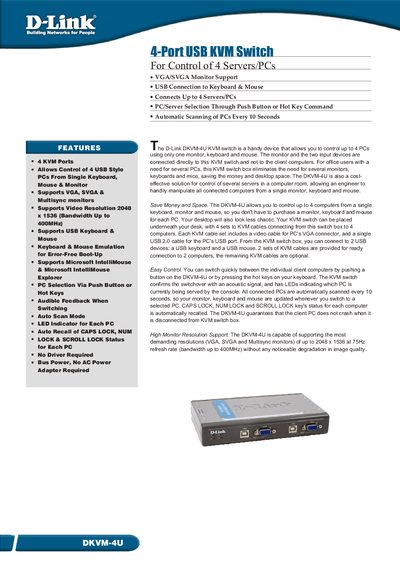
The DKVM-4U is a 4‑port USB KVM switch that lets a single keyboard, mouse and monitor control up to four PCs or servers. It supports VGA, SVGA and Multisyne monitors with resolutions up to 2048 × 1536 and draws power directly from the connected computers via USB, so no external power adapter is required.
The manual provides details on connectors, computer selection methods (push button or hot‑key), auto‑scan mode, LED indicators, and optional KVM cable lengths. It also lists physical dimensions, power consumption, and regulatory certifications.
| Supported video resolution | 2048 × 1536 |
|---|---|
| Video bandwidth | 400 MHz |
| Number of KVM ports | 4 |
| Power consumption | 5 V 70 mA |
| Power supply | USB bus powered, no external adapter |
| Dimensions (L × W × H) | 4178 mm × 105 mm × 30.5 mm |
| Weight | 275 g |
| USB connectors to computers | 4 × USB 2.0 Type B |
| Video connectors to computers | 4 × DB‑15 HDDB |
| Auto‑scan interval | Every 10 seconds |
It can control up to four PCs or servers from a single keyboard, mouse and monitor.
No, the switch is powered directly from the connected computers' USB ports.
You can switch manually using the push button on the unit or by pressing hot‑key combinations on the keyboard.