
This document provides instructions on setting up the Honeywell 3800 barcode scanner and using the Studio Organizer software for attendance recording and inventory scanning. It provides detailed steps and guidance.
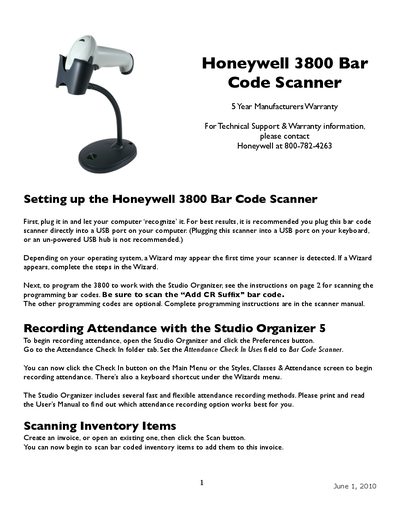
This manual explains how to set up the Honeywell 3800 Bar Code Scanner. Connect the scanner to a USB port on your computer, let the operating system recognize it, and follow any wizard prompts that appear. The scanner works best when plugged directly into a USB port rather than a keyboard hub or un‑powered hub.
The guide also covers programming options for use with the Studio Organizer, including adding a carriage‑return suffix, enabling always‑on or manual trigger modes, presentation mode, and resetting to factory defaults. Instructions for recording attendance and scanning inventory items are included.
| Interface | USB |
|---|---|
| Warranty | 5 Year Manufacturers Warranty |
Plug the scanner directly into a USB port on your computer and follow any setup wizard that appears.
Scan the “Add CR Suffix” bar code as described in the manual.
Scan the “Automatic Trigger” bar code to set the scanner to always‑on mode.