
This document is the Quick Installation Guide for Genius VideoCAM NB, which introduces the features and installation steps of the product.
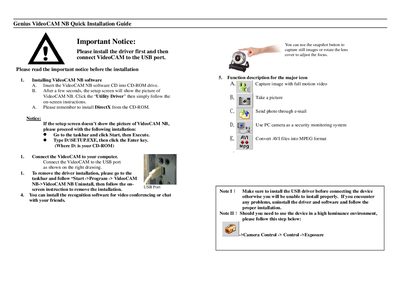
This Quick Installation Guide explains how to install the VideoCAM NB driver and software, connect the webcam to a USB port, and remove the driver if needed. It also outlines the main on‑screen icons for capturing video, taking pictures, sending photos by e‑mail, and converting files.
The guide includes important notices about installing DirectX, handling high‑luminance environments, and using the snapshot button or lens cover for focus adjustments. Follow the listed steps to ensure proper operation of the VideoCAM NB on a Windows PC.
Insert the VideoCAM NB software CD, run the setup, install the utility driver and DirectX, then follow the on‑screen instructions.
Open Start → Program → VideoCAM NB → VideoCAM NB Uninstall and follow the on‑screen instructions to remove the installation.
Press the snapshot button to capture still images or rotate the lens cover to adjust focus.
Use the icon labeled “Send photo through e‑mail” to email the captured image.