
Introduces the hardware and software installation methods of M725A mouse and M725A keyboard, and includes the methods of replacing batteries and setting ID channel settings.
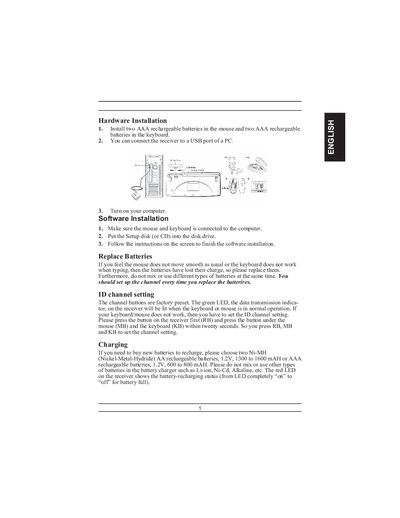
The manual covers hardware installation steps such as inserting two AAA rechargeable batteries into the mouse and keyboard, connecting the receiver to a PC USB port, and charging the batteries with the included USB charger. It also describes how to replace batteries, avoid mixing battery types, and set the ID channel by pressing the receiver, mouse, and keyboard buttons within twenty seconds.\n\nSoftware installation instructions include running the setup disk, customizing button assignments, using EasyJump functions, and uninstalling or closing the software. Troubleshooting tips address desk material interference, BIOS settings, and channel interference when multiple devices are used nearby.
| Battery type (AA) | Ni-MH AA rechargeable, 1.2V, 1300‑1600 mAh |
|---|---|
| Number of batteries required | Two AAA batteries in mouse, two AAA batteries in keyboard |
| Channel codes | 256 D‑codes |
Remove the old batteries and insert two AAA rechargeable batteries into the mouse and two into the keyboard, using the same type and avoiding mixing with other battery chemistries.
Press the receiver button (RB) first, then press the mouse button (MB) and the keyboard button (KB) within twenty seconds to set the channel.
In Windows, go to Start → Programs, locate the mouse software, and select "Uninstall software".