
This document provides a user guide for a scanner, including installation instructions, software functions, and usage precautions.
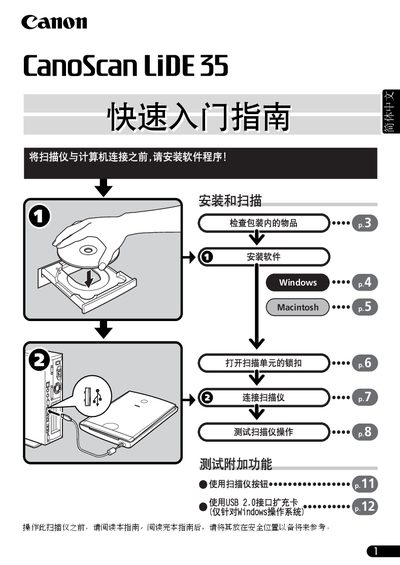
This guide provides step‑by‑step instructions for getting the CanoScan LiDE 35 ready for use. It walks you through checking the package contents, unlocking the scanner, connecting it to a computer, installing the supplied software, and performing a test scan.
The manual also includes safety notes, legal considerations for scanning documents, and a system‑information sheet to record the scanner’s operating environment for warranty support. This manual is written in Chinese.
| Interface | USB |
|---|---|
| Power | Powered via USB, no separate power switch |
| Included Software | ScanGear CS driver, CanoScan Toolbox, ArcSoft PhotoStudio, OmniPage OCR, Adobe Acrobat Reader |
Pull the lock lever on the scanner as shown in the guide to release the lock before connecting or scanning.
Only the USB cable that came with the scanner may be used; other cables can cause faults.
The package includes ScanGear CS driver, CanoScan Toolbox, ArcSoft PhotoStudio, OmniPage OCR, and Adobe Acrobat Reader.
Fill out the system‑information sheet with purchase date, serial number, computer specs, and operating system details.