
Key facts
- Brand
- IBM
- Model
- TRIRIGA Application Platform 3.5.2
- Category
- Other software
- Documents
- 3
- Languages
- EN · FR
- Last added
- 2023-12-02
Start here
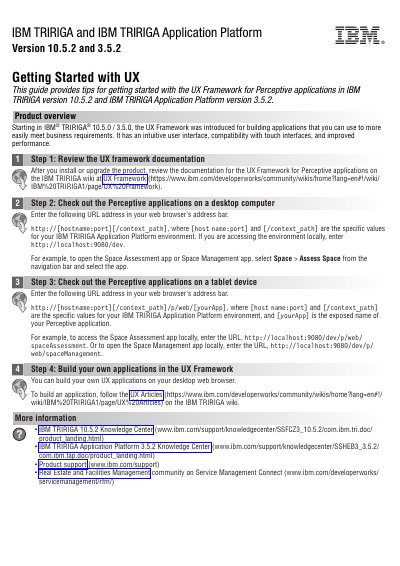
IBM TRIRIGA 10.5.2 and Application Platform 3.5.2 Getting Started with UX Guide
This two-page IBM guide gives tips for getting started with the UX Framework for Perceptive applications in IBM TRIRIGA version 10.5.2 and IBM TRIRIGA Application Platform version 3.5.2. It notes that the UX Framework was introduced starting in IBM TRIRIGA 10.5.0 / 3.5.0 for building applications, with an intuitive user interface, compatibility with touch interfaces and improved performance.
The guide walks through four steps: reviewing the UX Framework documentation on the IBM TRIRIGA wiki, opening Perceptive applications on a desktop computer by entering a URL in the browser address bar, opening them on a tablet device using a URL that includes the exposed application name, and building your own applications in the UX Framework. It closes with links to the 10.5.2 and 3.5.2 Knowledge Centers, product support and the Real Estate and Facilities Management community.
IBM TRIRIGA Application Platform 3.5.2 specifications
| Product versions covered | IBM TRIRIGA 10.5.2 and IBM TRIRIGA Application Platform 3.5.2 |
|---|---|
| Version where UX Framework was introduced | IBM TRIRIGA 10.5.0 / 3.5.0 |
| Local desktop URL | http://localhost:9080/dev |
| Local tablet URL example (Space Assessment app) | http://localhost:9080/dev/p/web/spaceAssessment |
| Interface characteristics | Intuitive user interface, compatibility with touch interfaces, improved performance |
Source: IBM TRIRIGA 10.5.2 and Application Platform 3.5.2 Getting Started with UX Guide
All IBM TRIRIGA Application Platform 3.5.2 documents by type
The shortest path to a working setup, usually only a few pages.
Questions answered in these manuals
How do I open the Perceptive applications on a desktop computer?
Enter http://[hostname:port][/context_path] in your web browser's address bar, using the values for your IBM TRIRIGA Application Platform environment. If you are accessing the environment locally, enter http://localhost:9080/dev.
From: IBM TRIRIGA 10.5.2 and Application Platform 3.5.2 Getting Started with UX Guide
How do I access the Perceptive applications on a tablet device?
Enter http://[hostname:port][/context_path]/p/web/[yourApp], where [yourApp] is the exposed name of your Perceptive application. For example, http://localhost:9080/dev/p/web/spaceAssessment.
From: IBM TRIRIGA 10.5.2 and Application Platform 3.5.2 Getting Started with UX Guide
Where do I download the product from?
The download instructions are in the IBM TRIRIGA and IBM TRIRIGA Application Platform download document on IBM Passport Advantage.
From: IBM TRIRIGA 10.5.2 and Application Platform 3.5.2 Quick Start Guide
Which databases and application servers are used during installation?
The installation steps configure a database on Oracle or Microsoft SQL Server and an application server such as IBM WebSphere Application Server, Oracle WebLogic Server or JBoss Application Server.
From: IBM TRIRIGA 10.5.2 and Application Platform 3.5.2 Quick Start Guide
Which databases are installed and configured during the TRIRIGA installation?
The installation steps call for installing and configuring Oracle or Microsoft SQL Server.
From: IBM TRIRIGA 10.5.2 and IBM TRIRIGA Application Platform 3.5.2 Quick Start Guide
Which application servers does the installation cover?
IBM WebSphere Application Server, Oracle WebLogic Server and JBoss Application Server.
From: IBM TRIRIGA 10.5.2 and IBM TRIRIGA Application Platform 3.5.2 Quick Start Guide