
Short guide to handling the Yealink T46S IP phone on MIXpbx: key layout, placing and transferring calls, hold, forward, conference and ring tone.
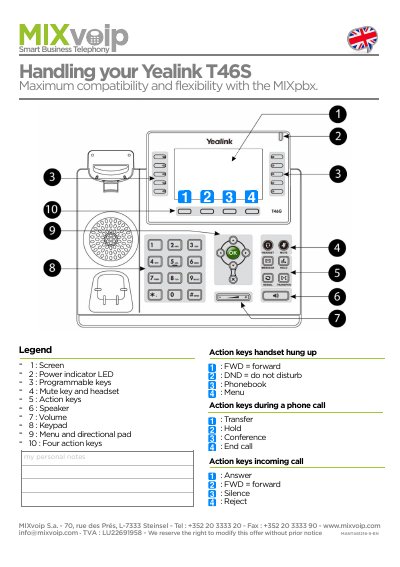
This is a short two-page handling card for the Yealink T46S IP phone used with the MIXpbx system, published by MIXvoip S.a. It starts with a numbered legend of the phone's hardware — screen, power indicator LED, programmable keys, mute key and headset, action keys, speaker, volume, keypad, menu and directional pad — and then explains what the four action keys do when the handset is hung up, during a call and on an incoming call.
The rest of the card gives step-by-step procedures for placing a call, blind and attended transfers, call interception with the DPickup key, enabling and disabling call forwarding, holding a call and swapping between two lines, starting a conference, checking the call log and voice messages with redial and message keys, and changing the ring tone from the menu. The card is printed with the reference MANT461216-5-EN.
| Compatible system | MIXpbx |
|---|---|
| Hardware elements | Screen, power indicator LED, programmable keys, mute key and headset, action keys, speaker, volume, keypad, menu and directional pad |
| Action keys | Four |
Enter the number and press in the centre of the directional pad.
Press transfer, which puts the call on hold, enter the destination extension number and hang up.
Press the hold key to place the call on hold and press hold again to resume it.
Press the Forward action key, press Enter twice, select enable with the right arrow, enter the destination number on the second line and save; choose disable the same way to turn it off.