
User guide for the Spectrum AC WiFi Router with Advanced Home WiFi, covering My Spectrum app setup, network personalization, troubleshooting and technical…
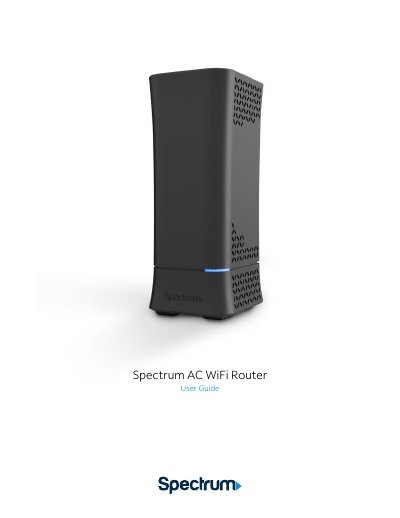
Spectrum's AC WiFi Router provides internet, network security and personalization through Advanced Home WiFi, managed with the My Spectrum app. The guide explains how to personalize the WiFi network name and password, pause or resume WiFi access for a connected device, get port forwarding support for improved gaming performance, and use both wireless and Ethernet connectivity.
The guide also covers placing the router for best coverage, what the status lights mean, troubleshooting slow speeds or a lost WiFi connection, and the router's technical specifications, including concurrent 2.4 GHz and 5 GHz bands, 802.11ac wave 2 chipsets, WPA2 security and four GigE LAN ports.
| Radio support | 2.4 GHz 3x3 b/g/n; 5 GHz 4x4 a/n/ac |
|---|---|
| Ethernet standard | 10/100/1000 |
| IP support | IPv4 and IPv6 |
| Power supply | 12VDC/2.5A |
| Dimensions | 4" x 3.5" x 9" |
| Frequency bands | Concurrent 2.4 GHz and 5 GHz |
| WiFi chipsets | 802.11ac wave 2 |
| Security | WPA2 personal |
| LAN ports | Four GigE LAN ports |
You can create a unique network name and an alphanumeric password in the My Spectrum app or at Spectrum.net.
It means the router is disconnected from the Internet.
Place it in a central location, on a raised surface and in an open space; do not place it in a media center or closet, near devices like cordless phones, or behind a TV.
Check your distance from the router, use the tools in the My Spectrum app, and make sure the router is placed in a central location.