
This document is about Spectrum WiFi 6 Router User Guide, which introduces how to use My Spectrum App to manage router's network security, personalization and connected devices
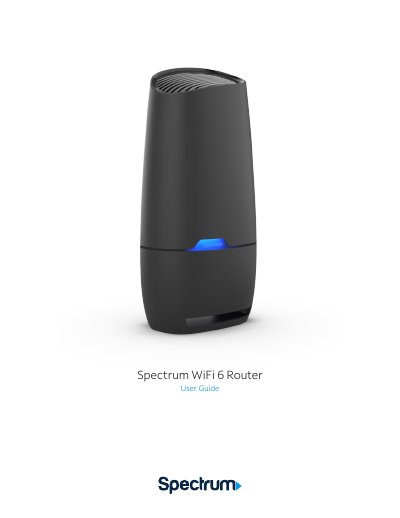
This user guide explains how to set up and manage the Spectrum WiFi 6 Router using the My Spectrum App. It details features such as Advanced In-Home WiFi, which allows users to personalize network names, manage connected devices, and pause access for specific devices. The guide also provides instructions on how to download the app via a QR code on the router label or the Spectrum website.
| WiFi Standard | 802.11ax |
|---|---|
| LAN Ports | Three GigE LAN ports |
| Ethernet Standard | 10/100/1000 |
| Power Supply | 12VDC/3A |
| Dimensions | 10.27" x 5" x 3.42" |
You can download the app on Google Play or the App Store, scan the QR code on the router label, or visit spectrum.net/getapp.
A red pulsing light indicates a connectivity issue, meaning there is no internet connection.
Press and hold the reset button on the side panel for more than 15 seconds to reset the router to factory default settings.