
This guide explains how to configure an ADSL or LAN PPPoE connection using the built-in Network Connection Wizard in Windows XP without installing extra…
Windows XP includes built-in support for PPPoE, allowing users with ADSL and LAN connections to establish internet access directly through the system's network wizard. This guide details the steps required to set up a new broadband connection using the native operating system features.
The process involves launching the Network Connection Wizard from the Start menu, selecting 'Connect to the Internet', and choosing the option for a manual setup via username and password (PPPoE). Users must enter their ISP's service name and login credentials provided by their provider. Finally, security settings should be configured according to the wizard's prompts before completing the ADSL connection setup. This manual is written in Chinese.
No, you do not need to install any additional PPPoE software; you can directly use the built-in connection wizard.
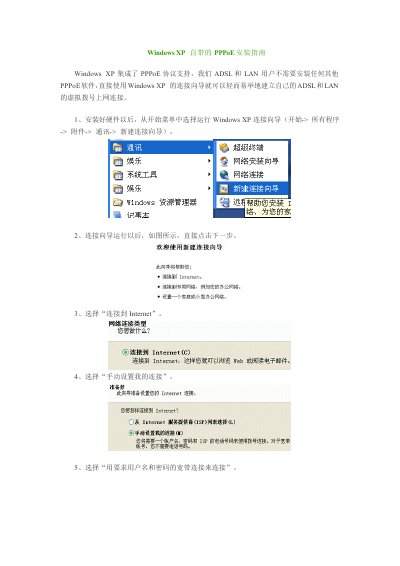
Open the Start menu, select All Programs, Accessories, Communications, and then click New Connection Wizard.
You must select 'Connect to the Internet' and then choose 'Set up my connection manually'.
You need to enter your ISP's service name and your login username and password provided by the ISP.