
Quick installation guide for the MERCURY 7108502230 REV1.0.2 Mesh Distributed Router, covering setup, Mesh pairing, and troubleshooting.
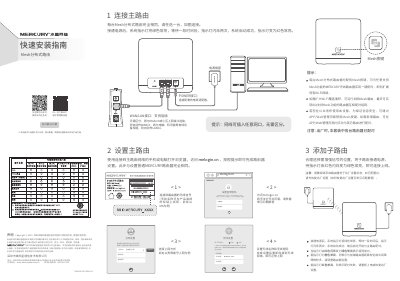
This guide explains how to connect the MERCURY Mesh Distributed Router as a main or sub‑router, configure WAN/LAN ports, and set up wireless credentials. After powering on, the indicator lights show status: green steady for ready, flashing red/green for pairing, and orange for weak signal.
It also details Mesh pairing methods (Mesh button, APP/WEB, or Ethernet), how to reset the device, and warranty information. Troubleshooting steps for common issues such as no internet, weak signal, or indicator‑light warnings are provided. This manual is written in Chinese.
| WAN/LAN interface | auto‑detects WAN or LAN based on connection |
|---|---|
| POWER interface | connects to supplied power adapter |
| Wireless bands | 2.4 GHz and 5 GHz share same SSID and password |
| Maximum Mesh nodes | up to 8 routers can be paired |
Press and hold the RESET button while the router is powered on until the indicator flashes quickly, then release.
Power on the new router, then press the Mesh button on the existing router followed by the Mesh button on the new router within two minutes; the indicator will turn green when pairing succeeds.
It indicates a pairing failure or a connection issue; check cable connections, distance to the main router, or perform a factory reset.