
Quick start guide for the Denon HEOS AVR E3 covering unpacking, placement, connections, HEOS app setup, basic troubleshooting, and support contact information.
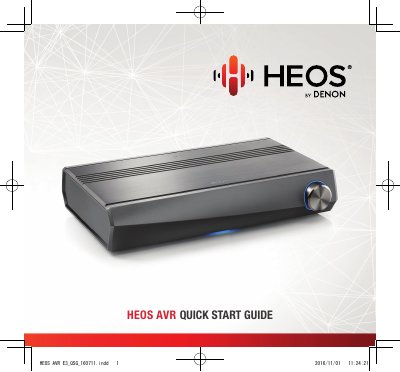
This quick start guide for the Denon HEOS AVR E3 explains how to unpack, place, and connect the HEOS AVR, including an optional wired network connection. It describes downloading the HEOS App and adding the device during setup.
The guide also gives basic troubleshooting for network connection, audio dropouts, Bluetooth pairing, AUX input distortion and delay, WPS connection, and device reset. Contact details for HEOS Customer Support are included for the US and Canada.
Press the WPS button on your router, then within 2 minutes press and hold the Connect button on the rear panel of the HEOS device for 3 seconds. The front LED will flash green while connecting and turn solid blue when complete.
Activate Bluetooth on your mobile device, then press and hold the Play/Pause button on the remote control unit for 3 seconds until you see two green flashes on the status LED. Then select “HEOS AVR” from the list of available Bluetooth devices.
Press and hold the Connect and Bluetooth buttons on the back of the HEOS device for 5 seconds until the front LED begins to flash amber. This clears wireless network settings, EQ, and name but retains the current software.
Make sure your Internet connection is operating correctly and your HEOS devices are within range of your wireless network. Also check that other users or devices are not using most of your bandwidth and that the devices are not near interfering electronics.