
Quick start guide for installing and initially configuring the Cisco CVR100W Wireless-N VPN Router.
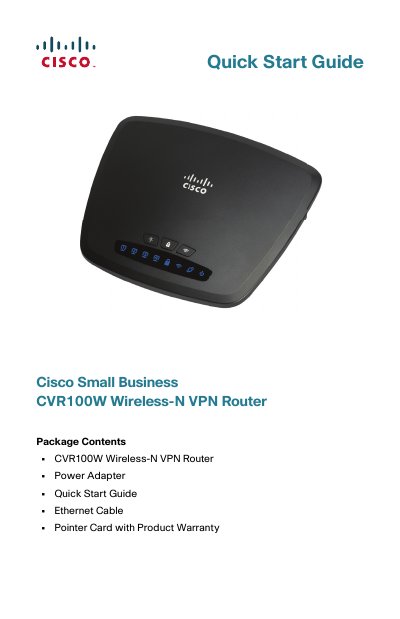
The Cisco CVR100W Wireless-N VPN Router provides business-class Internet connectivity for small office/home office and remote professionals. This guide describes how to physically install the router and launch the web-based Configuration Utility.
It covers package contents, front and back panel functions and lights, mounting, connecting equipment, and completing initial configuration with the Setup Wizard.
| Ambient temperature limit | 104°F (40°C) |
|---|---|
| Power adapter | 12 V/0.5 A |
| Default IP address | 192.168.1.1 |
| Alternate default IP address | 10.10.10.1 |
| Default username | cisco |
| Default password | cisco |
The default IP address is 192.168.1.1, and it changes to 10.10.10.1 if it conflicts with another device.
The default username is cisco and the default password is cisco; both are case sensitive.
Press the RESET button for 1 to 5 seconds to reboot, or hold it for more than 5 seconds to restore factory defaults.
Use only the supplied power adapter rated 12 V/0.5 A.