
This guide covers installation, mounting, and initial configuration for Cisco 300 Series Managed Switches, including default login credentials and…
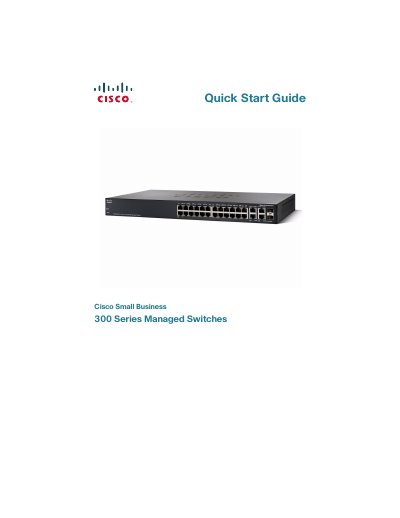
This Quick Start Guide provides instructions for deploying the Cisco 300 Series Managed Switches, covering package contents, physical mounting options (rack, wall, or desktop), and connecting network devices. It details the default IP address and login credentials required to access the web-based configuration utility.
| Default IP Address | 192.168.1.254 |
|---|---|
| Default Username | cisco |
| Default Password | cisco |
| Max PoE Power per Port | 15.4 Watts |
| Max Cabling Distance | 100 meters |
| Console Baud Rate | 115200 bps |
| Max Ambient Temperature | 40 degrees Centigrade |
The default IP address is 192.168.1.254 until it obtains an address from a DHCP server.
The default username is cisco and the default password is cisco.
Settings are 115200 bits per second, 8 data bits, no parity, 1 stop bit, and no flow control.
It can take up to one minute for attached devices or the LAN to be operational after it is connected.