
This manual describes the steps of downloading the firmware from Ricoh website and upgrading the camera firmware.
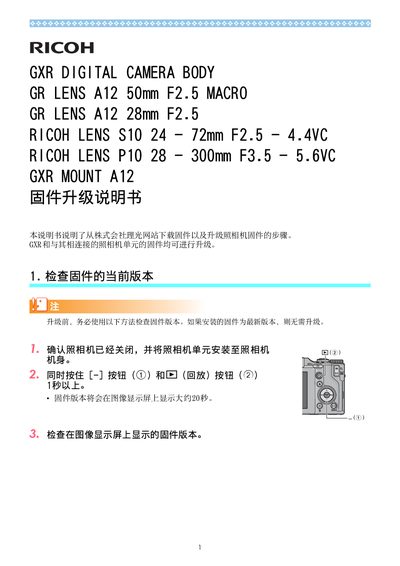
The manual provides step‑by‑step instructions for checking the current firmware version, extracting the update files, copying them to an SD card, and performing the upgrade on the GXR camera body and its interchangeable lens units.
It covers both Windows and macOS procedures, including formatting the SD card, using a USB connection or card reader, and confirming successful installation on the camera’s display. This manual is written in Chinese.
| GR LENS A12 focal length | 50mm F2.5 |
|---|---|
| GR LENS A12 focal length | 28mm F2.5 |
| LENS S10 focal length | 24‑72mm F2.5‑4.4VC |
| LENS P10 focal length | 28‑300mm F3.5‑5.6VC |
Turn the camera off, attach the camera unit, then hold the [-] button and the 6 (playback) button for more than one second; the version will appear on the display for about 20 seconds.
After extracting the firmware, copy all the generated files to the root directory of an SD card (64 MB or larger) using a USB connection, a card reader, or a card‑writer.
With the camera powered off, hold the [+] button and the 6 (playback) button together for 2‑3 seconds, then confirm on the screen; the camera will update the firmware and restart automatically.