
This manual is a user manual for Canon color laser printer, which introduces the characteristics, operating methods and precautions of the product, including safety information, operation safety matters, Energy Star Program, how to read this manual, the characteristics of this printer, printer guide, appearance, control panel, paper and other media, replacement consumables and maintenance kit, cleaning and adjusting the printer, troubleshooting, appendix, etc
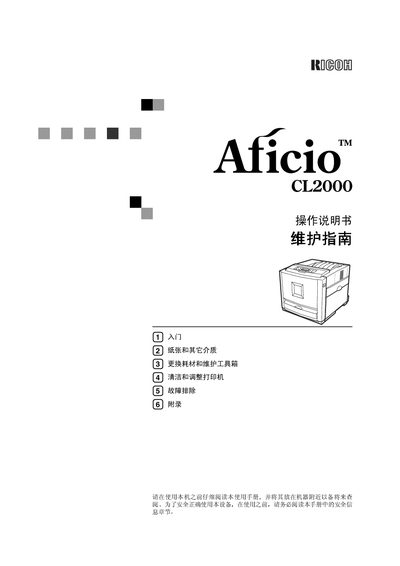
This manual explains how to safely operate the Ricoh Aficio CL2000 laser printer. It includes power requirements, laser safety warnings, and recommended use of original toner. The safety section warns about hazardous laser radiation and the need to read all safety information before use.
The guide covers printer features, media handling, cleaning and adjustment steps, troubleshooting common errors such as paper jams, and provides appendices with consumable part numbers and transport instructions. This manual is written in Chinese.
| Power Supply | 220-240V, 50/60 Hz, 4 A or above |
|---|---|
| Laser Wavelength | 785 nm |
| Laser Emission Mode | Continuous |
| Laser Output | Maximum mW (unspecified) |
Read all safety information, avoid looking directly at the laser beam, use only original toner, and do not attempt any maintenance steps not described in the manual.
The printer requires a power supply of 220‑240 V, 50/60 Hz, with a current rating of 4 A or higher.
Open the printer, locate the internal path, and carefully remove the jammed paper as described in the troubleshooting section.