
The Dell Wyse Cloud Client Wyse 5020 Quick Start Guide provides information on how to set up and use the Dell Wyse Cloud Client Wyse 5020.
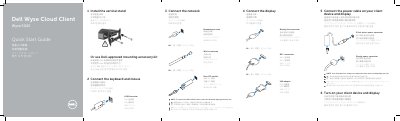
This quick start guide for the Dell Wyse Cloud Client Wyse 5020 walks through first-time setup in numbered steps: installing the vertical stand (or a Dell-approved mounting accessory kit), connecting the keyboard and mouse to a USB connector, connecting the network through the network connector, a wireless antenna or a Fibre SFP module, connecting the display by DisplayPort, DVI-I or a VGA adapter, and connecting the power cable to the client device and display before turning both on. A note states the client device is ready to use when its activity light goes off.
The second page lists the client device features, from the power on/off button and activity light to the USB 2.0 and super speed USB 3.0 ports, headphone/microphone jack, wireless antenna ports, DVI-I port, network port, +19V power adapter input and lock receptacle. It also gives support links for manuals, contacting Dell, and regulatory and safety information, and lists the regulatory model Dx0Q.
| USB 2.0 ports | 2x + 2x |
|---|---|
| Super speed USB 3.0 ports | 2x |
| Audio | Headphone/microphone jack |
| Display outputs | DisplayPort connector and DVI-I port (1x DVI-D / 1x VGA) |
| Network port | 10/100/1000 Base-T or SFP |
| Power input | +19V power adapter input |
| Wireless antenna ports | 2x (optional) |
| Security | Lock receptacle |
| Regulatory model | Dx0Q |
The client device is ready to use when the client device activity light goes off.
Rotate the latch and unplug the module from its slot.
See the Administrator's Guide at www.dell.com/support.