
Dell™ PowerVault™ DL Backup to Disk Appliance - Powered by CommVault® Setup Diagram
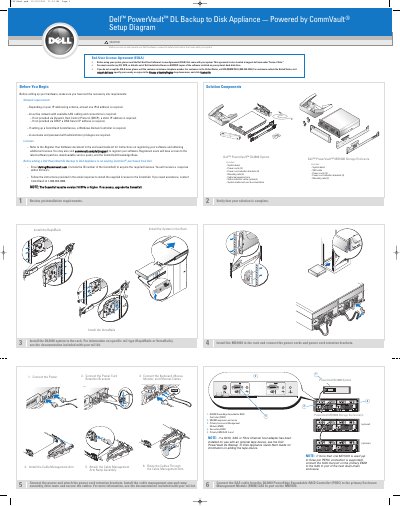
This two-page setup diagram from Dell walks through installing a PowerVault DL Backup to Disk Appliance powered by CommVault. It covers preinstallation requirements (network addressing, DHCP or static IP, DNS server, Windows Domain Controller for a CommServe, administrator credentials and software licenses), the contents of the DL2000 system and MD1000 storage enclosure ship groups, and the rack installation of both units using RapidRails or VersaRails.
The diagram then shows connecting the power cords and retention brackets, installing the cable management arm and ramp assembly, routing the cables, and connecting the SAS cable from the DL2000 PERC to the primary EMM SAS In port on the MD1000. It ends with the power-on order, the default Windows and CommVault logon passwords, the first backup with the EZ Operations Wizard, and where to find advanced backup documentation, updates and support.
| Network requirement | At least one IPv4 address, depending on the IP addressing scheme |
|---|---|
| Minimum CommCell version | 7.0 SP4a or higher |
| MD1000 enclosures per PERC connection | Up to three |
| Default Windows password | Stor@ge! |
| Default CommVault user name and password | cvadmin |
| CommVault software installation time | Approximately 10 minutes |
The default password is Stor@ge!; enter it when prompted on first power-on to log on to the system.
Turn on the MD1000 expansion enclosure(s) first, then the DL2000 system and monitor.
An active network with LAN cabling and at least one IPv4 address is required, plus a static IP address or DNS Server IP address if these are not provided by DHCP.
Email [email protected] with the CommCell ID number; you will receive a response within 24 hours and then install the supplied licenses.