
This document describes how to set up and operate a Dell laptop.
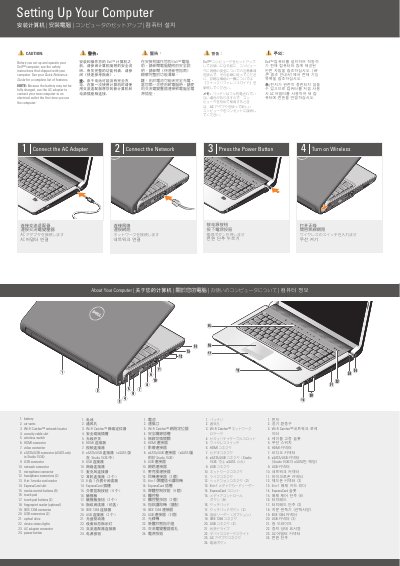
This two-page Dell guide covers initial setup for a Dell Studio 1536 laptop, including connecting the AC adapter, connecting the network, pressing the power button, and turning on wireless. It notes that the battery may not be fully charged, so the AC adapter should be used the first time the computer is turned on.
A labeled diagram identifies the laptop's ports, buttons, and status lights, including HDMI, eSATA/USB, IEEE 1394, network, microphone, headphone, and USB connectors. The guide also shows an optional wireless network setup and directs users to the Quick Reference Guide or support.dell.com for more information.
| eSATA/USB connector | eSATA only in Studio 1536 |
|---|---|
| Headphone connectors | 2 |
| Media control buttons | 9 |
| Touch pad buttons | 2 |
| USB connectors | 2 |
| Media card reader | 8-in-1 |
| Wireless network locator | Wi-Fi Catcher |
Use the AC adapter to connect the computer to an electrical outlet.
See the safety instructions that shipped with the computer.
Go to support.dell.com.
The eSATA/USB connector has eSATA only in the Studio 1536.