
The Dell Edge Gateway Quick Start Guide describes how to insert a micro-SIM card, connect to a network, connect a display, install the Dell Edge Gateway on a wall mount, and connect and configure devices using the I/O ports on your system.
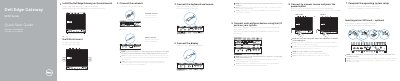
This quick start guide covers initial setup of the Dell Edge Gateway 5000 Series, including inserting an optional micro-SIM card, connecting wireless antenna, network, display, keyboard, mouse, and I/O devices, plus wall or DIN rail mounting and operating system setup.
It also identifies the system ports and status LEDs, lists features, and provides regulatory, safety, and product support information.
| Power adapter ports | +24 V AC/DC or +19 VDC |
|---|---|
| Regulatory model | N01G |
| Regulatory type | N01G001 |
| Computer model | Dell Edge Gateway 5000 |
The guide recommends inserting the micro-SIM card before powering on the Dell Edge Gateway.
The peripherals like wireless antenna, keyboard, and mouse are sold separately.
The power adapter is sold separately.
Turn on the corresponding DIP switches to enable the corresponding RS232/RS422/RS485 ports.