
This document is about the installation manual for IBM SPSS Statistics 22 for Mac.
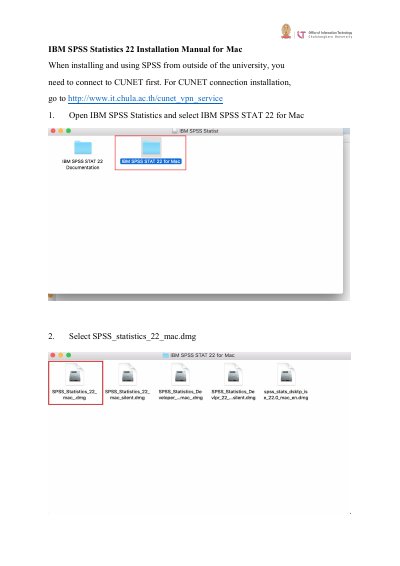
This installation manual describes how to install IBM SPSS Statistics 22 on a Mac. It notes that users outside the university must connect to CUNET first and points to CUNET connection installation instructions.
The guide follows the installer screens: selecting the SPSS Statistics 22 Mac disk image, choosing a language, entering license details, selecting Concurrent user license, entering the license server address splm.it.chula.ac.th, choosing help languages, installing Essentials for Python, selecting the install folder, reviewing the pre-installation summary, and completing the installation.
| Version | 22 |
|---|---|
| Platform | Mac |
| License type | Concurrent user license |
| License server | splm.it.chula.ac.th |
| Installation folder | /Applications /IBM/SPSS/Statistics/22 |
| Required disk space | 903,937,429 Bytes |
| Python version | 2.7 |
You need to connect to CUNET first. Follow the CUNET connection installation instructions if needed.
Select Concurrent user license and then click Next.
Enter splm.it.chula.ac.th as the License Manager name or Server IP Address.
It installs to /Applications /IBM/SPSS/Statistics/22.