
The TP-Link RE200 is an AC750 Wi-Fi range extender that can extend your existing Wi-Fi network to a wider area. It features dual-band technology, which allows it to work on both the 2.4GHz and 5GHz bands simultaneously, for a total speed of up to 750Mbps. The RE200 also comes with two external antennas, which can help to boost signal strength and coverage.
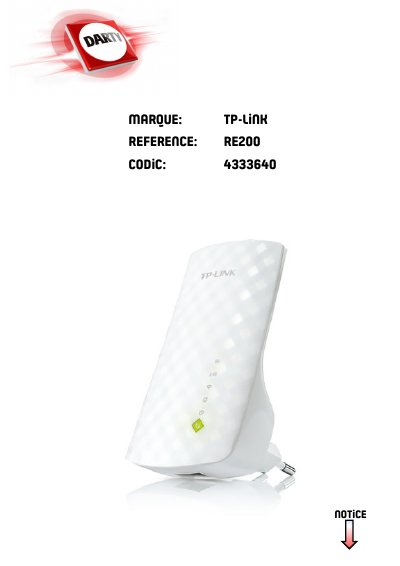
The TP-Link RE200 is an AC750 Wi-Fi Range Extender. This user guide explains how to connect it to a host router wirelessly and how to configure and manage the extended network.
It covers WPS, web browser and TP-Link Tether app setup, LED and port descriptions, positioning the extender, wireless and LAN settings, DHCP server settings, access control, wireless adapter and access point use, firmware upgrade, backup and restore, login password changes and the system log.
| Product type | AC750 Wi-Fi Range Extender |
|---|---|
| Wireless bands | 2.4 GHz and 5 GHz |
| Router compatibility | Works with any standard wireless router |
| Ethernet port | Ethernet port for wired devices |
| Power | Plug into an electrical outlet |
Press the WPS button on the host router, then press the extender’s WPS/RE button within 2 minutes and wait for the LED to become solid on.
Yes. Both extended networks share the same SSIDs and passwords as the host networks.
Use a pin to press and hold the Reset button until all the LEDs flash once.
Enter http://tplinkrepeater.net or http://192.168.0.254 in the browser address field.