
KCU-40 WI-FI Module is specifically designed for KUTAI ATS and Generator Controllers. Download the free app for PC, tablet, or smartphone to monitor, control, and configure the controllers remotely. Controllers’ system parameters can be setup directly in KCU-40 software (Refer to KCU Communication Software Installation Manual) for easy configuration.
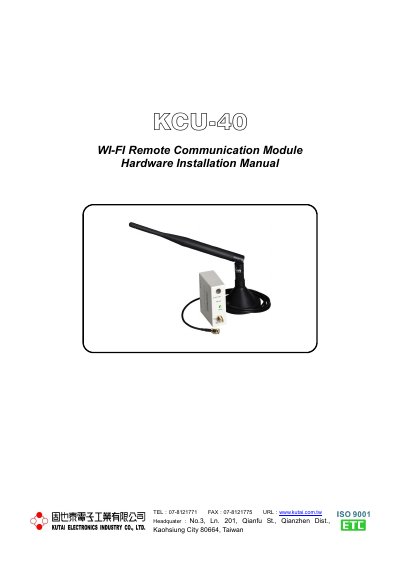
The KUTAI KCU-40 is a WiFi remote communication module specifically designed for KUTAI ATS and Generator Controllers, such as the AMF-10, GCU-100, and ATS-34 series. It allows users to monitor, control, and configure controllers remotely via a free app for PC, tablet, or smartphone. The module supports WPS and SoftAP modes for easy wireless connection and uses dual-key encryption for secure data transmission.
| Power Consumption | < 1.5 watts |
|---|---|
| Operation Temperature | -20 to +70°C |
| Storage Temperature | -35 to +85°C |
| Dimensions | 65.0 (L) x 23.0 (W) x 54.0 (H) mm |
| Weight | 46.59 +/- 2% |
| Wireless Standards | 802.11b / 802.11g / 802.11n |
| Frequency Range | 2.4 —2.5 GHz |
| Antenna Gain | 5 dBi |
| Connector | SMA Male RS |
| Typical Range | 150 M (Indoor) 250 M (Outdoor) |
The factory Administrator Password is 0000 and the Viewer Password is 9999.
It is designed for KUTAI ATS and Generator Controllers, including models AMF-10, GCU-100, GCU-3000, ATS-22A, ATS-33, ATS-34, and ATS-PLC.
Press the Mode button on the KCU-40 until the WiFi status light is solid orange.
Press the Mode button twice until the WiFi status light is solid red.