
Simplicity Studio is a software that can be used to design wireless applications. It provides hardware configuration, network analysis, real-time energy debugging, a high-powered IDE and links to helpful resources.
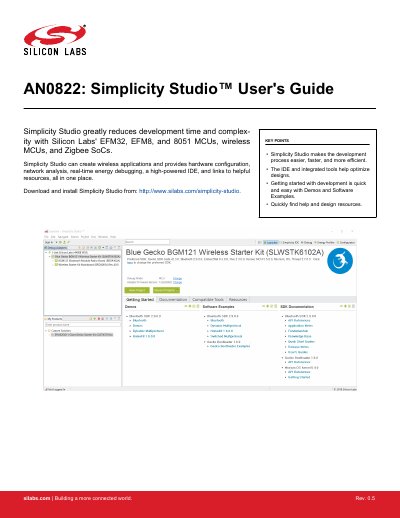
Simplicity Studio is an integrated development environment that simplifies development for Silicon Labs' microcontrollers and wireless SoCs. It includes tools for hardware configuration, network analysis, real-time energy debugging, and code editing. The guide covers getting started, documentation, compatible tools, and resources, with sections on project management, importing/exporting projects, and using the Simplicity IDE.
The software organizes tools into four main categories: Getting Started, Documentation, Compatible Tools, and Resources. Users can select devices via connected kits or by adding parts to the 'My Products' window. The IDE supports multiple project types including Empty C Program, Example, Library, and Simplicity Configurator Program, with options for configuring build settings and importing projects from other IDEs like Keil or IAR.
Simplicity Studio supports EFM32, EFM8, and 8051 MCUs, wireless MCUs, and Zigbee SoCs.
The software gathers all tools into four categories: Getting Started, Documentation, Compatible Tools, and Resources.
Users can click the [Enter product name ] box, type a product name, and click the desired product from the drop down list.