
This is a user manual for the Epson Stylus CX9400Fax Series all-in-one printer. It mainly introduces how to load paper, use special papers, place originals for copying, scanning or faxing, copy documents or photos, fax documents or photos, and print from the camera's memory card.
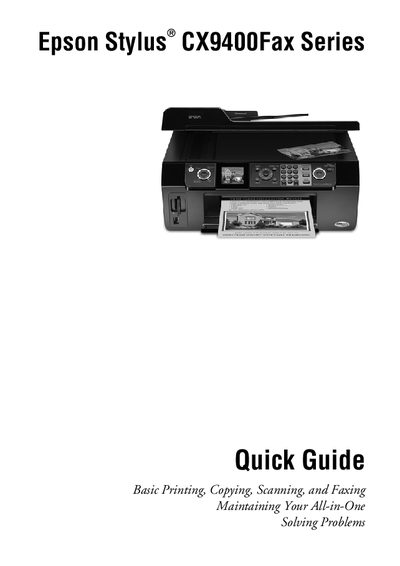
This Quick Guide covers the essential functions of the Epson Stylus CX9400Fax Series All‑in‑One printer, including how to print from a computer or camera memory card, copy and scan documents, and send or receive faxes. It also explains the layout of the control panel and how to select paper types and print quality.
The guide details paper handling (up to 100 sheets of plain paper, 20 sheets of premium paper, and automatic document feeder capacity of 30 letter‑size sheets), using special Epson papers, placing originals on the scanner glass or ADF, copying and photo restoration steps, and basic maintenance such as checking print‑head nozzles, cleaning the print head, and replacing ink cartridges.
| Plain paper capacity | 100 sheets |
|---|---|
| Premium paper capacity | 20 sheets |
| Automatic Document Feeder capacity (legal size) | 10 sheets |
You can load up to 100 sheets of plain paper in the paper tray.
The ADF holds up to 30 letter‑size sheets or 10 legal‑size sheets.
Open the cartridge access door, remove the empty cartridge, insert a new genuine Epson cartridge, and close the door.