
This document provides a user guide for network cameras, including product introduction, installation, device search, video property settings and PTZ control operations, system settings, alarm settings, control panel, etc. Network cameras have the features of easy installation, wide range of applications, support for multiple protocols, simple configuration, video viewing and recording, alarm monitoring, etc.
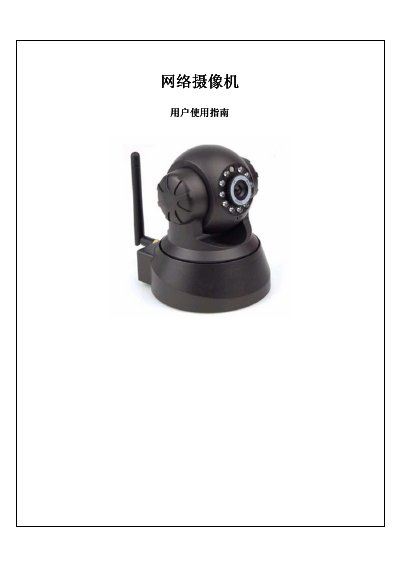
The IP-Cam user manual provides a complete overview of the network camera, describing its features, system requirements, and basic operation. It explains how to install the hardware, connect to a wired or Wi‑Fi network, and set up the device for local and remote viewing.
The guide also details video and PTZ settings, alarm configuration, system options, and advanced network functions such as DDNS, UPnP, and port forwarding for WAN access. Step‑by‑step instructions are given for searching devices, logging in, and using the web interface on PCs and smartphones. This manual is written in Chinese.
| Minimum CPU | Pentium III or higher, 1 GHz |
|---|---|
| Minimum RAM | 256 MB |
| Supported Operating Systems | Windows XP or later |
| Supported Video Resolutions | 640×480 or 320×240 |
| Power Input | 5 V DC |
The default username and password are both "admin".
The camera supports DDNS; enable the DDNS option in the network settings to use a dynamic domain name when the IP address changes.
Create a virtual server entry on your router, entering the camera’s IP (e.g., 192.168.1.5) and port 80, then save the rule.