
This document describes how to install the Raritan DominionSX Serial Manager
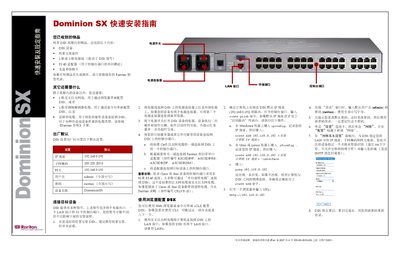
This guide walks you through the items included in the DSX box, the default network settings, and the physical installation of the Dominion SX. It also explains how to power on the unit, connect target devices, and verify that the hardware self‑test completes successfully.
After the hardware is installed, the guide shows two methods for configuring the device: using a web browser to access the built‑in web interface, or using the command‑line interface (CLI). It covers setting the IP address, subnet mask, gateway, device name, and changing the default admin password, as well as configuring date, time, and additional ports. This manual is written in Chinese.
| Default IP address | 192.168.0.192 |
|---|---|
| Default subnet mask | 255.255.255.0 |
| Default gateway | 192.168.0.192 |
| Default username | admin |
| Default password | raritan |
| Device name | DominionSX |
| Power connectors | 2 |
| LAN interfaces | 1 (or 2 depending on model) |
| Console ports | 32 |
The box should contain the DSX device, rack‑mount kit, one or two power cords, an RJ‑45 adapter, a CD and a warranty card.
When you log in for the first time, the system prompts you to change the default password; enter a new password and use it for subsequent logins.
Open a web browser and navigate to http://192.168.0.192, then log in with the default username "admin" and password "raritan" (or the password you set).
Connect a computer to the DSX "terminal" port, then use the CLI to set parameters such as IP address, baud rate, and time zone.