
Key facts
- Manuals
- 3
- Languages
- ZH
- Last added
- 2012-01-20
Featured Dominion manuals

Dominion KX2-101 User Manual
The Dominion KX2-101 is a compact KVM‑over‑IP solution designed for space‑constrained environments. It supports multiple media options such as CD/DVD, USB storage, and SD cards, and offers advanced AES encryption for secure remote access. Power can be supplied via PoE or an external 6 V DC adapter, and the device includes a multi‑function serial port for additional connectivity.
The manual details the supported interfaces (VGA, keyboard, mouse, Mini‑USB, DB9 serial, RJ45 with PoE), maximum video resolution of 1600 × 1200 @ 60 Hz, and environmental specifications. It also lists optional accessories, mounting kits, and integration options with directory services like Active Directory, LDAP, and RADIUS. This manual is written in Chinese.
Covers: Product Features · Supported Media · Power Options · Connection Interfaces · Specifications · Accessories
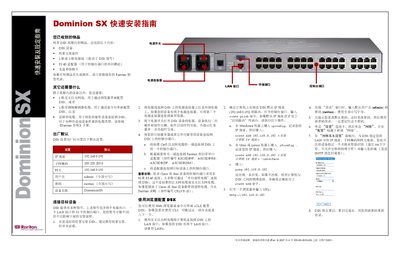
Dominion SX Quick Installation Guide
This guide walks you through the items included in the DSX box, the default network settings, and the physical installation of the Dominion SX. It also explains how to power on the unit, connect target devices, and verify that the hardware self‑test completes successfully.
After the hardware is installed, the guide shows two methods for configuring the device: using a web browser to access the built‑in web interface, or using the command‑line interface (CLI). It covers setting the IP address, subnet mask, gateway, device name, and changing the default admin password, as well as configuring date, time, and additional ports. This manual is written in Chinese.
Covers: Unpacking and Required Items · Default Network Settings · Physical Installation · Web Interface Configuration · Command Line Configuration · Date and Time Settings
Raritan Dominion KX II User Manual
This manual covers all aspects of the Dominion KX II, a KVM‑over‑IP appliance. It includes an introduction to the product, hardware and software overviews, and detailed installation and configuration steps for network, power, and virtual media features.
The guide also explains user and group management, security settings such as LDAP/Radius integration, diagnostics, and troubleshooting. A comprehensive FAQ and specifications section round out the document for administrators and technicians. This manual is written in Chinese.
Covers: Introduction · Hardware Overview · Software Overview · Installation and Configuration · User Management · Network Settings
Latest Dominion manuals
Dominion KX2-101 User Manual
User Manual 2 pages · 223 KB · ZHThe Dominion KX2-101 user manual provides specifications, connection options, and configuration features for this KVM‑over‑IP device.
Dominion SX Quick Installation Guide
Quick Start Guide 2 pages · 481 KB · ZHThe Dominion SX Quick Installation Guide provides step‑by‑step instructions for unpacking, connecting power, network, and configuring the device.
Raritan Dominion KX II User Manual
User Manual 347 pages · 5.8 MB · ZHThe Raritan Dominion KX II user manual provides setup, configuration, and management instructions for the KVM over IP device.
Which document do I need?
User Manual
Day-to-day operation, settings and troubleshooting. Start here if the product is already set up.
Quick Start Guide
The shortest path to a working setup, usually only a few pages.
Questions answered in Dominion manuals
What video resolution does the Dominion KX2-101 support?
It supports up to 1600 × 1200 at 60 Hz.
What are the physical dimensions and weight of the device?
The unit measures 103 × 74 × 27 mm and weighs about 0.295 kg.
What items should be in the DSX box?
The box should contain the DSX device, rack‑mount kit, one or two power cords, an RJ‑45 adapter, a CD and a warranty card.
How do I change the default admin password?
When you log in for the first time, the system prompts you to change the default password; enter a new password and use it for subsequent logins.
How do I reset the Dominion KX II?
Press the reset button on the device to perform a factory reset.
How is network failover configured?
Connect both Ethernet ports, enable Automatic Failover in the Network Configuration page, and the device will switch to LAN2 if LAN1 fails.