
Key facts
- Brand
- UBIQUITI NETWORKS
- Model
- UniFi Cloud Key Gen2
- Category
- Network Switches
- Documents
- 3
- Languages
- ZH · EN
- Last added
- 2023-10-18
Start here
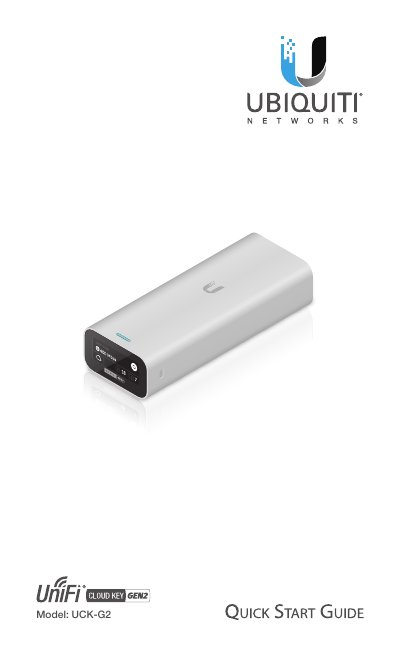
Ubiquiti Networks UniFi Cloud Key Gen2 Quick Start Guide
This guide helps you install and configure the UniFi Cloud Key Gen2. It includes hardware details, network setup, and system requirements. The device connects via Ethernet to a PoE switch or USB-C power source and supports remote access through the UniFi App or web browser. This manual is written in Chinese.
Read onlineUbiquiti Networks UniFi Cloud Key Gen2 specifications
| Dimensions | 27.10 x 46.80 x 119.75 mm (1.07 x 1.84 x 4.71") |
|---|---|
| Weight | 172 g (6.07 oz) |
| Power Supply | 802.3af PoE or USB-C 5VDC, Minimum 1A |
| Max. Power Consumption | 5W |
| Operating Temperature | 0 to 35° C (32 to 95° F) |
| Operating Humidity | 20 to 80% Noncondensing |
| Certifications | CE, FCC, IC |
Source: Ubiquiti Networks UniFi Cloud Key Gen2 Quick Start Guide
All Ubiquiti Networks UniFi Cloud Key Gen2 documents by type
The shortest path to a working setup, usually only a few pages.
Questions answered in these manuals
What are the system requirements for the UniFi Cloud Key Gen2?
You need the latest version of the UniFi App (available on App Store and Google Play) and the latest Google Chrome browser for web access.
From: Ubiquiti Networks UniFi Cloud Key Gen2 Quick Start Guide
How do I power the UniFi Cloud Key Gen2?
It can be powered by an 802.3af-compliant switch (like a UniFi PoE Switch) or a USB-C power adapter supporting Quick Charge 2.0 or 3.0.
From: Ubiquiti Networks UniFi Cloud Key Gen2 Quick Start Guide
What web browser is recommended for the UniFi Cloud Key?
Google Chrome is recommended, as other browsers may have limited functionality.
From: Ubiquiti Networks UCK-G2 UniFi Cloud Key Gen2 Quick Start Guide
What type of Ethernet cabling is required?
All Ethernet cabling runs must use CAT5 (or above).
From: Ubiquiti Networks UCK-G2 UniFi Cloud Key Gen2 Quick Start Guide
What are the functions of the Reset button?
Press and release quickly to restart the Cloud Key, or hold for more than five seconds to restore factory default settings.
From: Ubiquiti Networks® UniFi® Cloud Key Gen2 Rackmount Accessory Quick Start Guide
Can I use the Ethernet port on the Cloud Key and Rackmount Accessory simultaneously?
No. To prevent network loops, only one Ethernet connection should be used.
From: Ubiquiti Networks® UniFi® Cloud Key Gen2 Rackmount Accessory Quick Start Guide