
Key facts
Start here
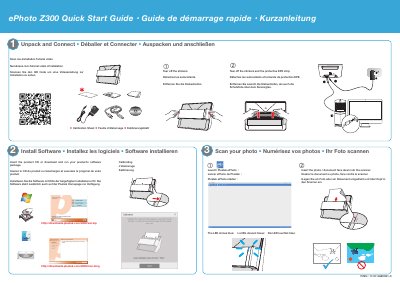
Plustek ePhoto Z300 Quick Start Guide
This quick start guide explains how to unpack and connect the Plustek ePhoto Z300, install its software, calibrate the scanner, and scan photos.
It also covers troubleshooting incorrect scanned colors, scanning without the software interface, and technical support contact information.
Plustek Z300 specifications
| Optical Resolution | 300 dpi / 600 dpi |
|---|---|
| Scan Mode (Color) | 48-bit input, 24-bit output |
| Scan Speed (A4) | About 5 seconds |
| Scan Range | 1" x 1" to 8.5" x 11.7" |
| Paper Weight | 0.76 mm or less (non-embossed) |
| Power Supply | 24 Vdc / 0.75 A |
| Interface | USB 2.0 |
All Plustek Z300 documents by type
The shortest path to a working setup, usually only a few pages.
Day-to-day operation, settings and troubleshooting. Start here if the product is already set up.
Questions answered in these manuals
What should I do if scanned image colors are incorrect?
Clean the scanner and calibrate the scanner.
How can I scan photos without previewing each image?
Check “Scan and save directly to” and select the destination folder in the Preferences dialog.
What are the system requirements for Windows?
The scanner requires a CPU of 2GHz or higher, at least 2 GB of RAM (4 GB recommended), and 10 GB of hard disk space.
What does the blue LED light indicate?
A solid blue light indicates that Plustek ePhoto is activated and the scanner is ready to scan.